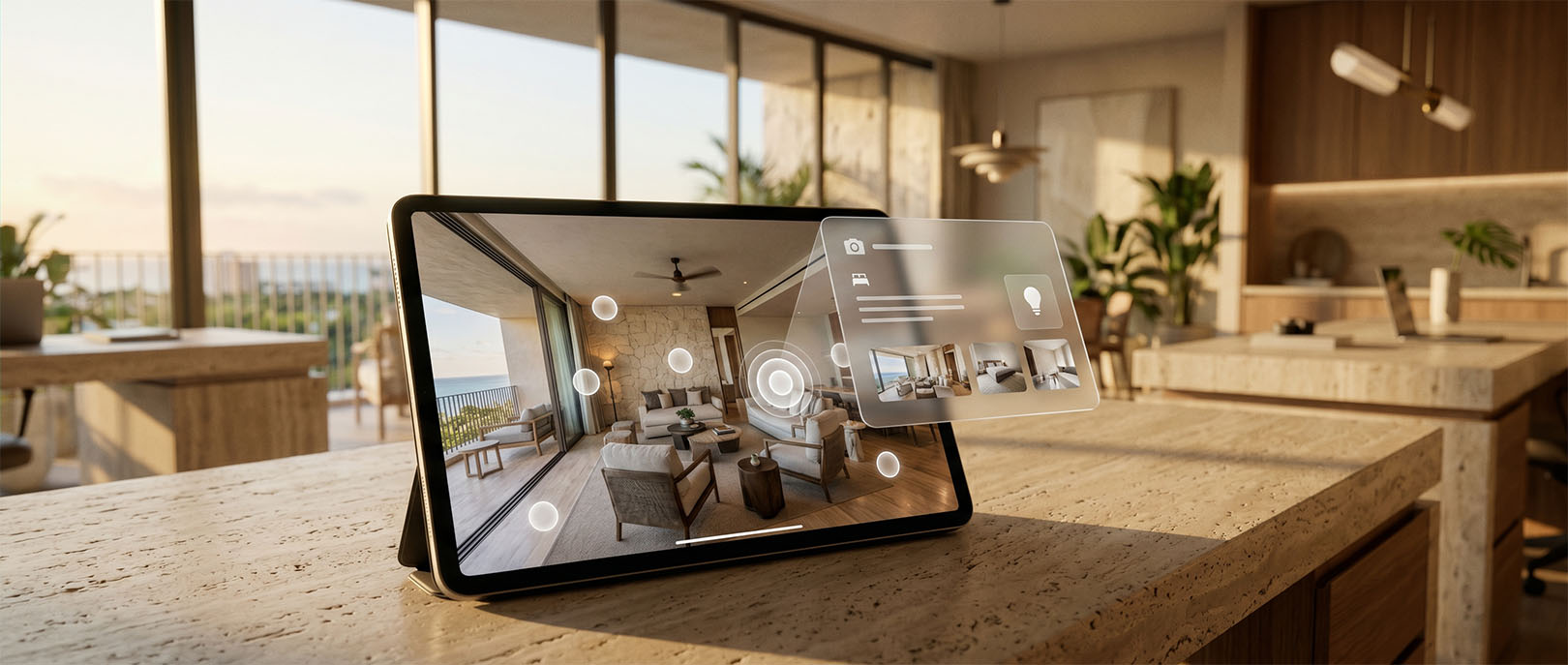
Learn how information, media, navigation and conversion hotspots can explain a space without overwhelming the virtual-tour experience.
- Hotspots add information or actions to specific points inside a virtual tour.
- Every hotspot should answer a customer question or support navigation.
- Too many hotspots compete with the space and increase cognitive load.
- Labels, icons and mobile behavior need consistent UX rules.
What an interactive hotspot is
A hotspot is a selectable point placed inside a scene. It can move the visitor to another area, open text, show an image or video, display a document, launch a form or connect to an external page.
Its value comes from context: the information appears where the visitor is already looking at the relevant feature.
Four useful hotspot categories
- Navigation: move between rooms, floors or exterior areas.
- Information: explain a material, service, amenity or specification.
- Media: open video, photography, audio or a document.
- Conversion: request a quote, contact an advisor, book or view availability.
Use hotspots to reduce uncertainty
A hotel can explain room categories, a developer can identify finish specifications, a museum can add curatorial context and a showroom can connect products to detailed pages. The best hotspot answers a question that would otherwise interrupt the experience or require a separate sales explanation.
UX rules that keep the tour clear
- Use a consistent icon system and naming convention.
- Keep labels short and specific.
- Avoid placing several controls in the same visual area.
- Test tap targets and overlays on small screens.
- Make the close action obvious.
- Distinguish navigation from information and conversion actions.
Measure the interactions that matter
Track hotspot category and destination rather than only a generic click. This shows whether visitors are seeking technical detail, changing scenes or moving toward contact. Do not label every click as a conversion.
LUM360 hotspot planning
We map hotspots after defining the visitor’s questions and the commercial role of each scene. Interactivity is added when it improves understanding or action; decorative hotspots that create noise are removed.
Frequently asked questions
How many hotspots should a scene have?
There is no universal number. Use the minimum needed to guide navigation and answer important questions without crowding the view.
Can hotspots open video or PDF files?
Yes, when the viewer and hosting setup support those media types.
Can hotspot clicks be tracked?
Yes. Structured events can identify the hotspot type, scene and destination.
Turn the idea into a useful digital experience.
Tell us about the space, audience and business goal. LUM360 can help define the right combination of web, visual production, analytics and immersive media.