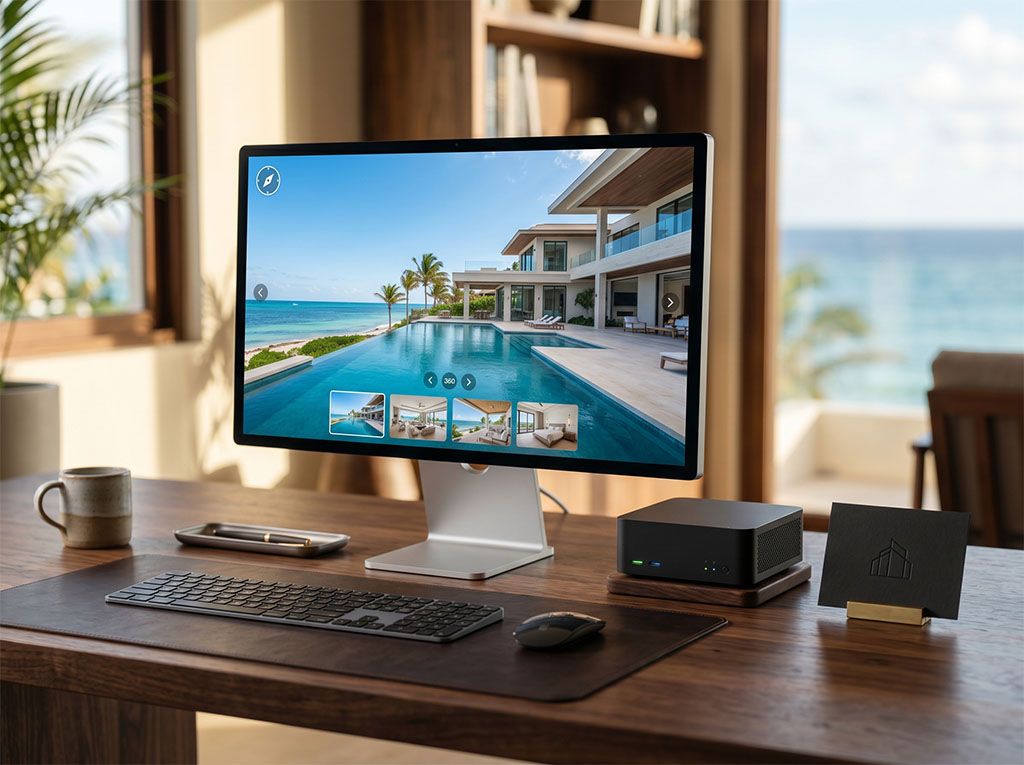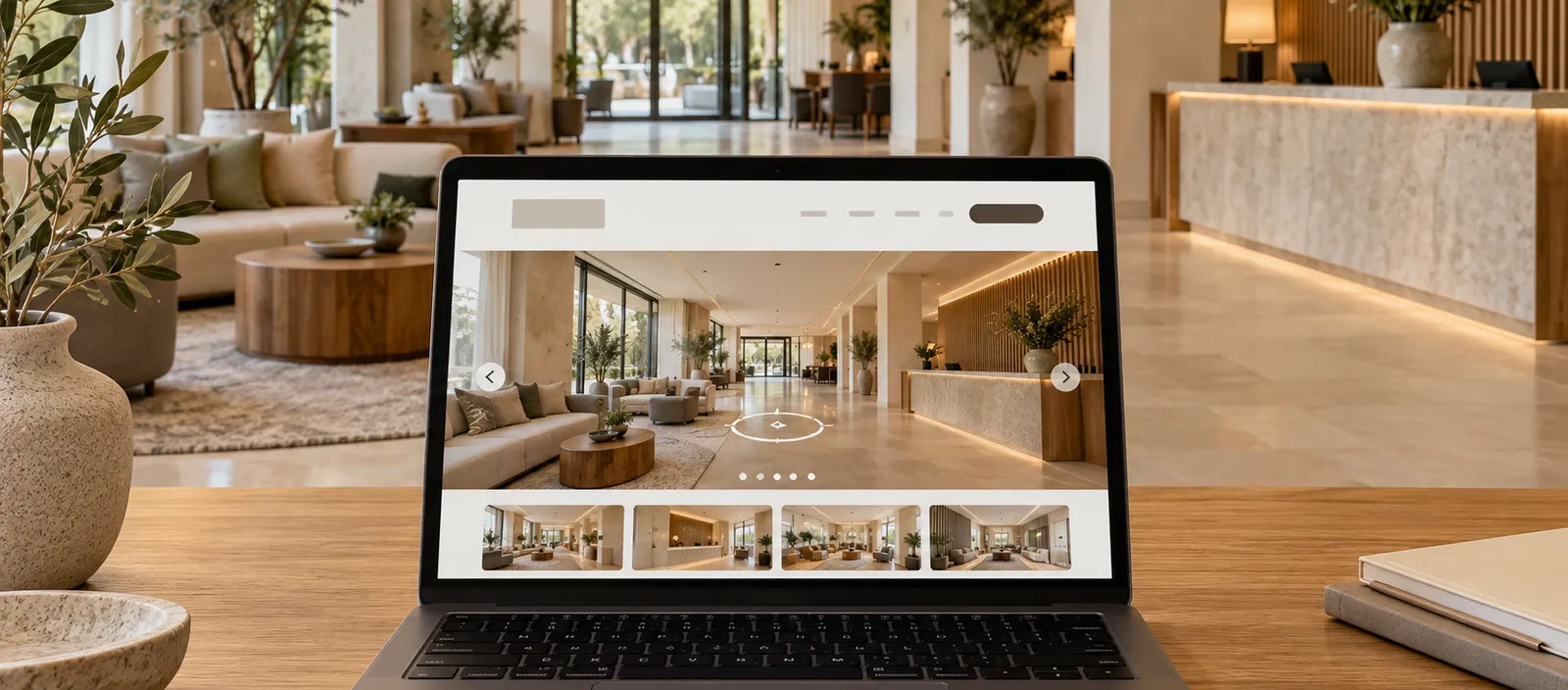
To embed a virtual tour, use the embed URL supplied by its platform, reserve a responsive space, and keep a direct fallback link. Then check the published page on mobile and desktop, including navigation, loading, and permissions. Seeing the viewer once on your own computer does not complete the review.
Imagine someone checking a restaurant’s private dining room on their phone. They want to understand the space before booking. If the tour fills the screen, takes too long to load, or hides the contact button, a visually appealing embed can make that task harder. Exploring the space should support the decision, with useful business information available around it.
1. Choose between a link and an embedded viewer
A direct link opens the tour on a separate page. It is a simple option when you want to share it in a message or keep a short page free of a heavy viewer. An embedded tour lets visitors explore without leaving your website, but adds a dependency that needs maintenance and testing.
Ask the provider for the official embed URL or code. The address used to edit a project may differ from its public address. Confirm that visitors can access the published tour without an account, that your domain is allowed, and that your plan covers the intended use. Keep private dashboard URLs and access credentials out of the HTML.
2. Give the tour space without crowding out essential information
Place the viewer where it answers a specific question: alongside a space description, visit options, or property details. Keep the information needed to take the next step outside the viewer, including location, features, relevant conditions, and contact details. Visitors can then use it even if the scene fails to load.
In the layout, reserve an aspect ratio and a minimum height that leave enough room to operate the controls. Check a narrow screen: a very shallow panoramic frame can leave the controls covering the view. There is no universal height. Set it around the actual viewer and the task it supports.
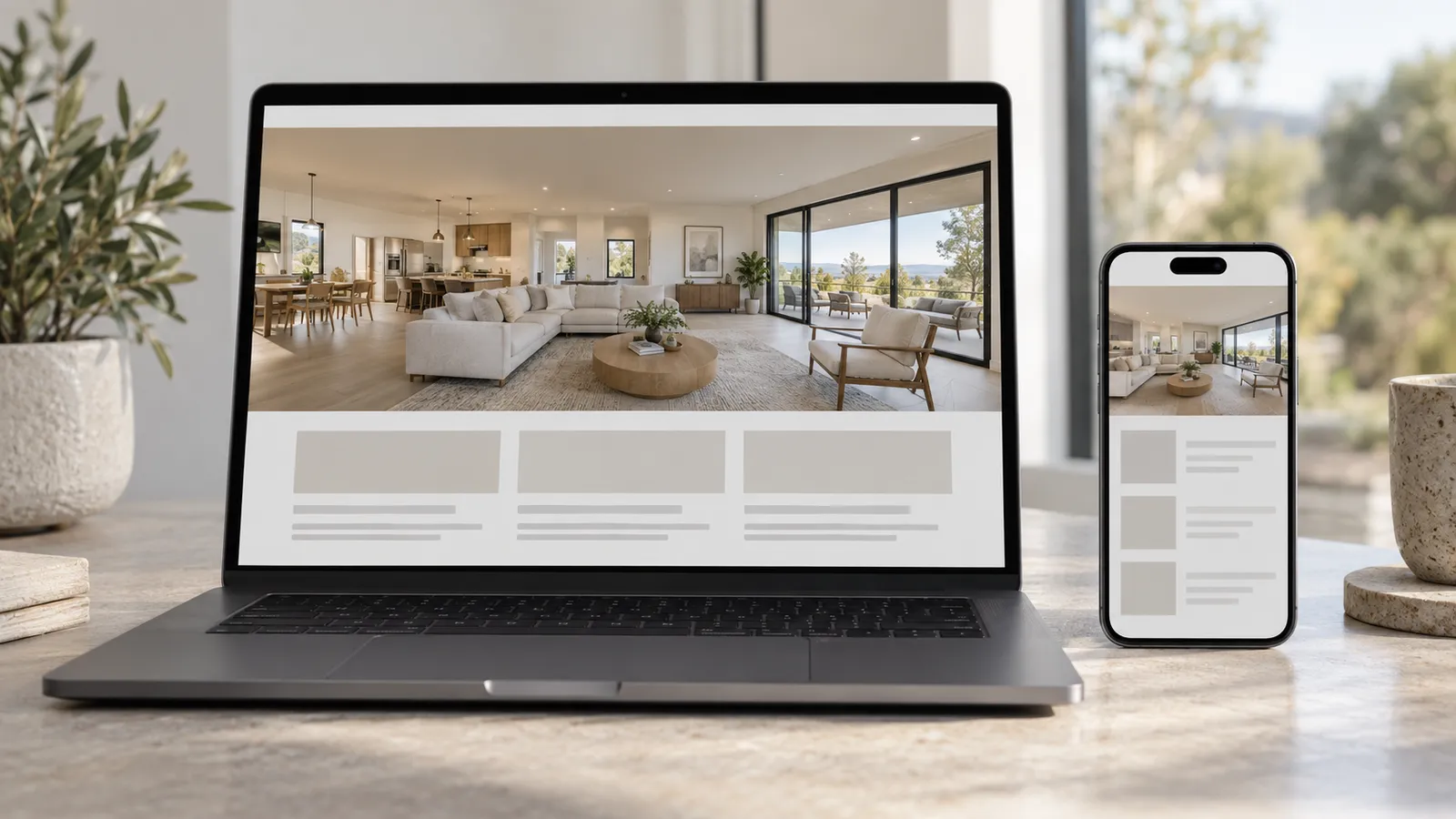
An iframe can have an accessible title describing its contents, such as “Virtual tour of the main dining room.” This identifies the frame, but does not fix accessibility barriers inside the tour. Also check whether its controls work with a keyboard and whether an alternative description of the space is available.
3. Review loading and external dependencies
When the tour sits farther down the page, lazy-loading the iframe can delay downloading it until the visitor approaches. This is a performance technique, not a consent mechanism. A button that activates the viewer also cannot prevent earlier connections if its URL is already loading through another path.
Review the provider’s external services and how they interact with your website’s privacy setup. If your implementation requires permission before connecting to them, start testing with clean browser storage. Check what happens before and after the visitor makes a choice. Hiding a viewer does not necessarily stop its network requests.

Request only the permissions the viewer needs, and review the provider’s documentation before changing sandbox or permissions policy settings. Removing restrictions indiscriminately may fix a blank screen while creating another problem. If the platform blocks embedding through security headers, consult the provider or use the direct link.
4. Test a complete visitor journey on the published page
Test with someone who did not work on the integration. Ask them to find a scene, move between viewpoints, leave the viewer, and find the contact option. Watch where they hesitate. A simple session can reveal that a control obvious to the team is unclear to a first-time visitor.
- Open the final URL on a phone and computer without a provider login.
- Move between scenes and check zoom and fullscreen if available.
- Check portrait and landscape orientation, scrolling, and returning to the page.
- Use Tab, Enter, and Escape as supported; check focus and the ability to leave.
- Try a constrained connection and confirm that the main page remains usable.
- Temporarily block the viewer’s domain during testing and try the fallback link.
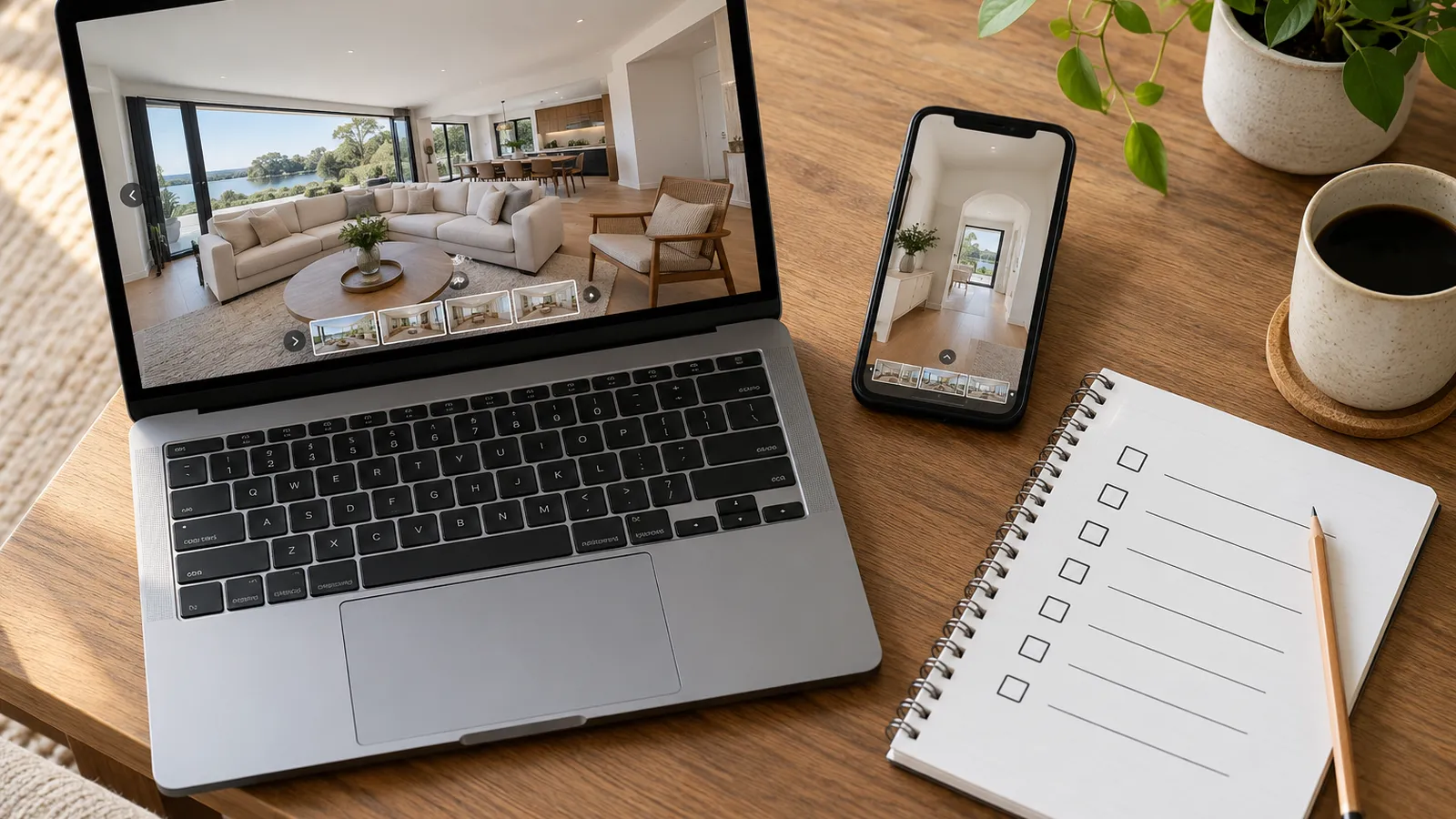
Record the device, browser, URL, date, and result. Distinguish a check on your own machine from a review across several devices. Neither, by itself, proves performance for every visitor. If you track interactions, define each event clearly and avoid labeling a tour opening as a booking.
5. Plan for ongoing availability
Record who maintains the account, when hosting renews, and how the link will be replaced if the platform changes. Keep a record of the approved configuration and assign a review owner. A domain or provider-permission change can affect a viewer that has worked for months.
Use this editable tour integration checklist. If you are still deciding where the files will live, start with the tour hosting and domain guide. This article’s checklist focuses on embedding and checking a viewer within an existing website.
Frequently asked questions
Does an embedded tour replace my page content?
Avoid relying on the viewer to explain your offer. Keep useful information and navigable links on your own page. Do not assume that all text or interactive points inside the tour will be indexed as content belonging to that URL.
Why does the link work while the iframe stays blank?
Possible causes include provider restrictions, an incorrect embed URL, a security policy, or a blocked dependency. Review the browser console and network requests alongside the platform’s documentation. The direct link gives visitors an alternative while you investigate.
Sources
Reviewed and checked on November 1, 2026.
- (n.d.). It’s time to lazy-load offscreen iframes! web.dev. Retrieved November 1, 2026, from https://web.dev/articles/iframe-lazy-loading
- (n.d.). Search Engine Optimization Starter Guide. Google Search Central. Retrieved November 1, 2026, from https://developers.google.com/search/docs/fundamentals/seo-starter-guide
- (n.d.). The iframe element. MDN Web Docs. Retrieved November 1, 2026, from https://developer.mozilla.org/en-US/docs/Web/HTML/Reference/Elements/iframe